- Editor
- Video editing guides
- How to make a YouTube end screen
Guide
How to make a YouTube end screen
The last 20 seconds are the cheapest place to win the next view.
A YouTube end screen is a set of clickable elements (a video or playlist, a subscribe button, a channel, or a link) that appears in the last 5 to 20 seconds of a video. The video must be at least 25 seconds long, standard 16:9 videos can show up to four elements, and you add them in YouTube Studio under Content, the video, Editor, End screen. The video itself should leave clean space behind them: an outro card with your channel name and a simple background.

The rules, from YouTube Help
These come from YouTube's own help page on end screens. They're the hard limits; the design is up to you.
| Rule | Limit |
|---|---|
| When it shows | The last 5 to 20 seconds |
| Minimum video length | 25 seconds |
| Elements | Up to 4 on a 16:9 video (fewer on other shapes) |
| Element types | Video or playlist, Subscribe, Channel, Link |
| Links to websites | YouTube Partner Program members only |
| Made for kids | Not available |
YouTube Help: Add end screens to videos, read October 29, 2026.
How to add an end screen in YouTube Studio
You can start from one of YouTube's templates, which group elements in a ready layout you then adjust to your frame.
The end screen lives in YouTube, not in your file. Your video only has to leave room for it.
- 1
Open YouTube Studio
Content, then pick the video
- 2
Open the editor
Editor, then End screen
- 3
Add elements
A template, or one element at a time
- 4
Place and time them
Drag on the frame and on the timeline
- 5
Save
It shows on the next views
Design the outro behind it
Because the elements float over your last seconds, the picture underneath matters. A busy clip makes the buttons hard to see; a calm card with your channel name, one line and space for the elements makes them obvious.
Keep the space where you'll put elements empty in the outro itself. The common layout is the channel name on one side and one or two video slots on the other.
What to point people to
One strong next video beats four options. Say it out loud in the last line of the script too: "If you want to know what happened to the second probe, that's this one."
- One video that continues the story, chosen by you
- "Best for viewer", which lets YouTube pick from your channel
- Your most recent upload, or a playlist of the series
- The subscribe element, as one of the four, not all of them
Write the last 20 seconds into the script
Most viewers leave the moment a video feels finished. Wrap up the story before the end screen starts, then use the final seconds to hand off to the next video, not to say goodbye.
A good rhythm: the payoff line, one sentence that points forward, then the outro card for 10 to 15 seconds while the end screen elements show.
- 1
Roman concrete heals itself.
The payoff, on its own - 2
Next, how the Romans built a dome that still stands.
The hand-off line - 3
(10 to 15 seconds)
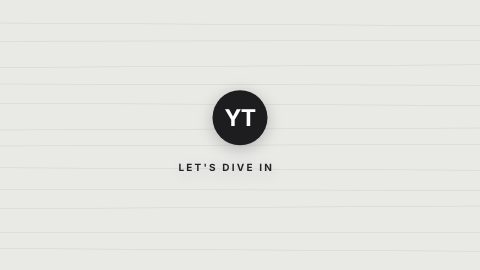
Outro card with space for the elementsOutro
Make the outro card in UGCLive Editor
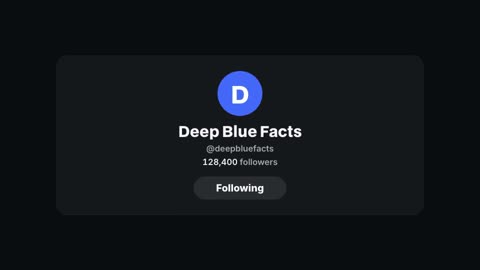
Open Graphics, then Social and outros, and pick the Outro or the Follow card. Type your channel name, a line and the call to action; it takes your video's accent color and font and lands as its own clip at the end.
Trim it to the length you'll use in YouTube Studio, between 5 and 20 seconds, and export at 1920×1080. You can also ask the chat for it: "add an outro card for Deep Blue, subscribe for new facts every week".
- Added the Outro card as the last clip
- Name: Deep Blue, line: New facts every week, button: Subscribe
- Used the video's accent color and font
Common end screen mistakes
Check your end screen on a phone after you save it. The elements look bigger there than in YouTube Studio's editor, and anything that crowds the frame on a small screen will crowd it for most of your viewers.
Keep the outro the same across a series, so regular viewers learn where to tap.
- Elements covering the speaker's face or the outro's text
- Four elements when one clear next video would do
- A goodbye that starts before the end screen, so people leave first
- A busy last clip that makes the buttons hard to see
- Forgetting the 25-second minimum on short videos
Questions
How long can a YouTube end screen be?
Between 5 and 20 seconds, at the very end of the video. The video has to be at least 25 seconds long.
How many elements can an end screen have?
Up to four on a standard 16:9 video. YouTube may allow fewer on videos with other aspect ratios.
Why can't I add an end screen?
The most common reasons: the video is shorter than 25 seconds, or it's set as made for kids, where end screens aren't available.
Can I reuse the same end screen layout?
Yes. Keep one outro card design for the channel and the same element layout in YouTube Studio, so viewers learn where to look. Templates in YouTube Studio help you set it up quickly.
What size should an end screen background be?
The same as the video, usually 1920×1080. Design it as the last 5 to 20 seconds of the video itself, with empty space where the elements will go.
Should I say the end screen out loud?
Yes, briefly. One line that names the next video and why it follows this one moves more viewers than the elements alone. Say it before the end screen starts, then let the outro card hold.
Can I add an end screen after the video is published?
Yes. End screens are edited in YouTube Studio at any time, so you can update an old video's end screen to point at a newer one in the same series.
Does UGCLive Editor add the end screen elements?
No, those clickable elements are added in YouTube Studio. UGCLive Editor makes the outro card the elements sit on, at the right length and size, with your channel's name and accent color.
Keep reading
- YouTube outros and introsAnimated YouTube outros, logo intros, follow cards and subscribe calls to action. Type your channel name and add the ending to any video.
- YouTube script templateA fill-in YouTube script template for long videos and Shorts: the hook, the promise, chapters, the payoff and the close, with real examples of each part.
- Video sizesThe right size for every platform: 1920×1080 for YouTube, 1080×1920 for Shorts, TikTok and Reels. Make one video, then a copy in each shape.
- Text animationsAnimated titles, kinetic words, typewriter text, handwritten titles and chapter cards. Type your words and render them into your video.
- Jump cut editingA jump cut removes a slice of time from one shot. Where it came from, why YouTube made it normal, and how to cut pauses without it looking choppy.
- HyperFrames explainedWhat HeyGen's open-source HyperFrames is, how its HTML compositions render to MP4, what's in its block library, and how to use its templates without code.
Updated 29 October 2026
Make your next video
Upload a video or paste a script, then say the edit. Our AI makes it on a timeline you can still change.
Try for free